
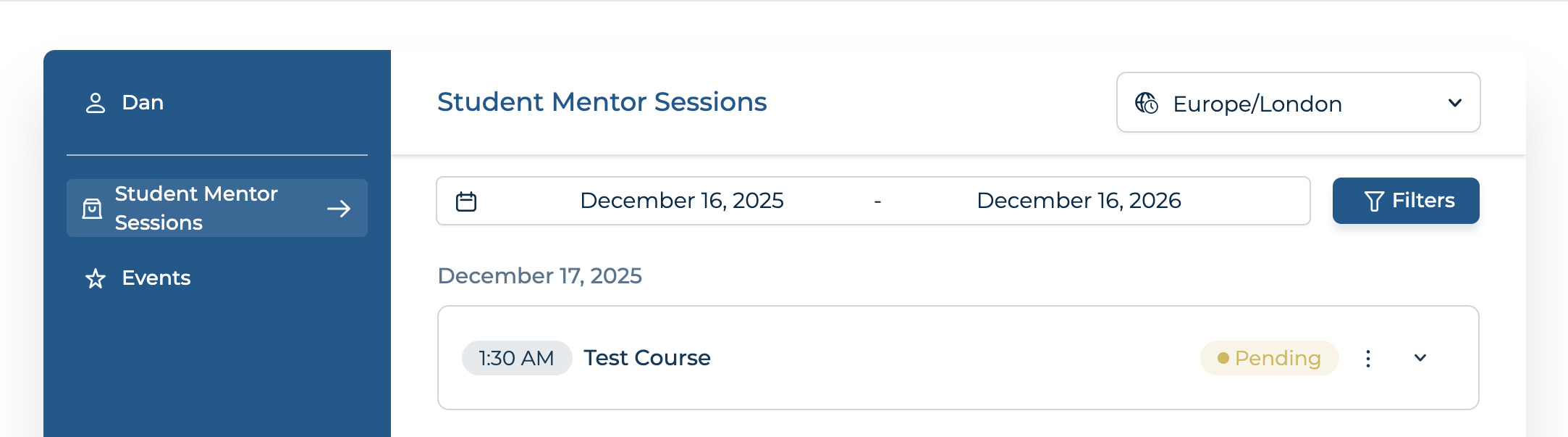
Once inside your customer panel, you can see all upcoming and past sessions.
To view your session, make sure you are searching within the correct date range. If the date range is incorrect, the session will not appear. You can adjust your date range using the date filter, as shown in the screenshot below.

 View your bookings
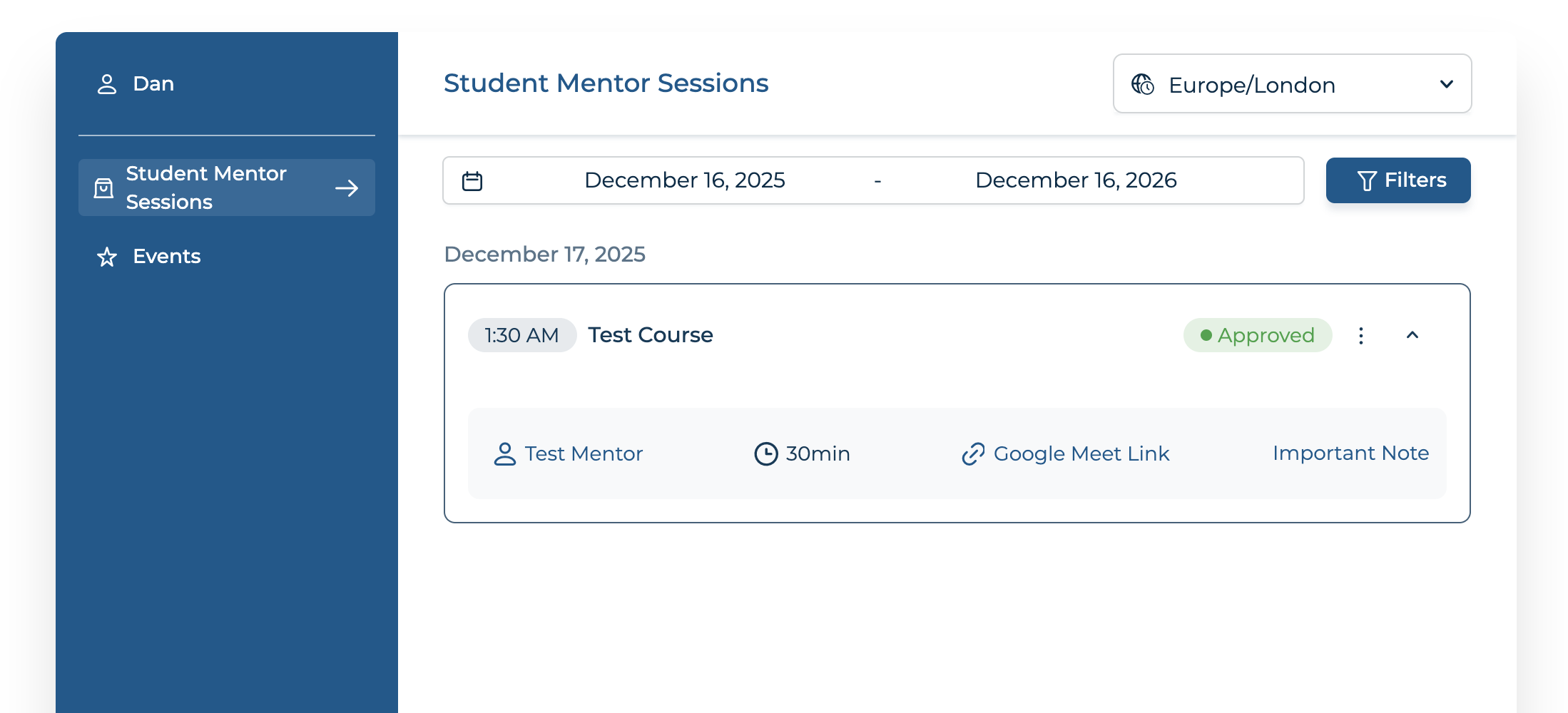
Open any booking to view full details
Your Google Meet link will appear inside the booking details
How to Access Your Booking
Everything you need to know about accessing, managing and joining your session — step by step.
Once you've booked a session on Already Doing It, you'll be able to access My Booking whenever you need to. This is a secure area where you can view your bookings, access your session link, and manage your details in one place.
There's no need to remember a username or password. Access is provided through a secure email link sent directly to you, making it simple and safe to use.
Before your session, you'll receive a confirmation email that includes your Google Meet link. The same link will also be available inside My Booking, so you can always access your session even if you can't locate the email.
After your booking is confirmed, you'll receive an email titled:
"Student Mentor Session Pending"
This email contains a secure, personal link to My Booking.
- Check your spam or junk folder
- Or visit My Booking from the website menu and enter your email address to receive the link again
My Booking is automatically created when a booking is made, in order to assist you in accessing and modifying your booking.
The information in your panel is what you provided when booking, stored according to our Privacy Policy and Terms & Conditions. You can request deletion at any time.
Uni Insiders and the public cannot access this information. When you book, mentors only see your first name and age. Any other contact details are used only if the platform needs to reach you.
To access your panel:
- Click the secure link inside the email
- You'll be logged straight into My Booking
There's no login or password required — the link gives you secure, direct access.
Once inside My Booking, you can see all upcoming and past sessions.
To view your session, make sure you are searching within the correct date range. If the date range is incorrect, the session will not appear. You can adjust your date range using the date filter, as shown in the screenshot below.
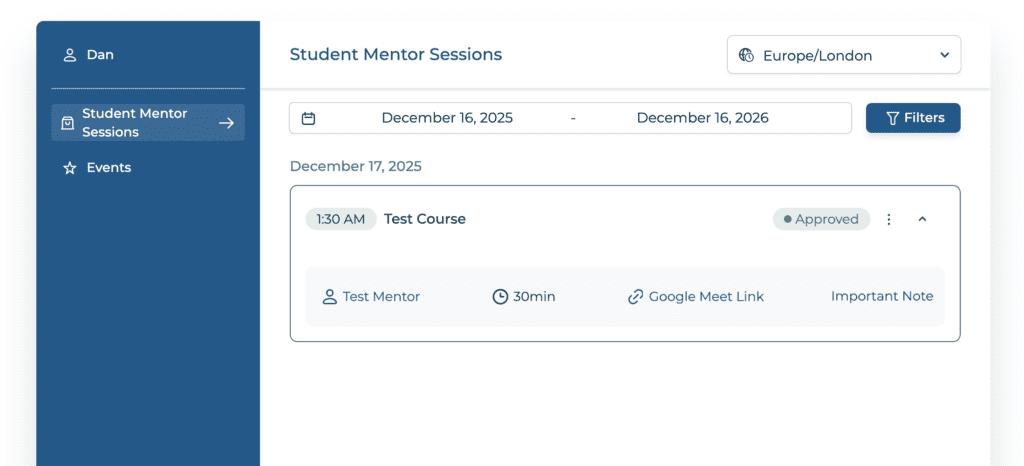
- Open any booking to view full details
- Your Google Meet link will appear inside the booking details
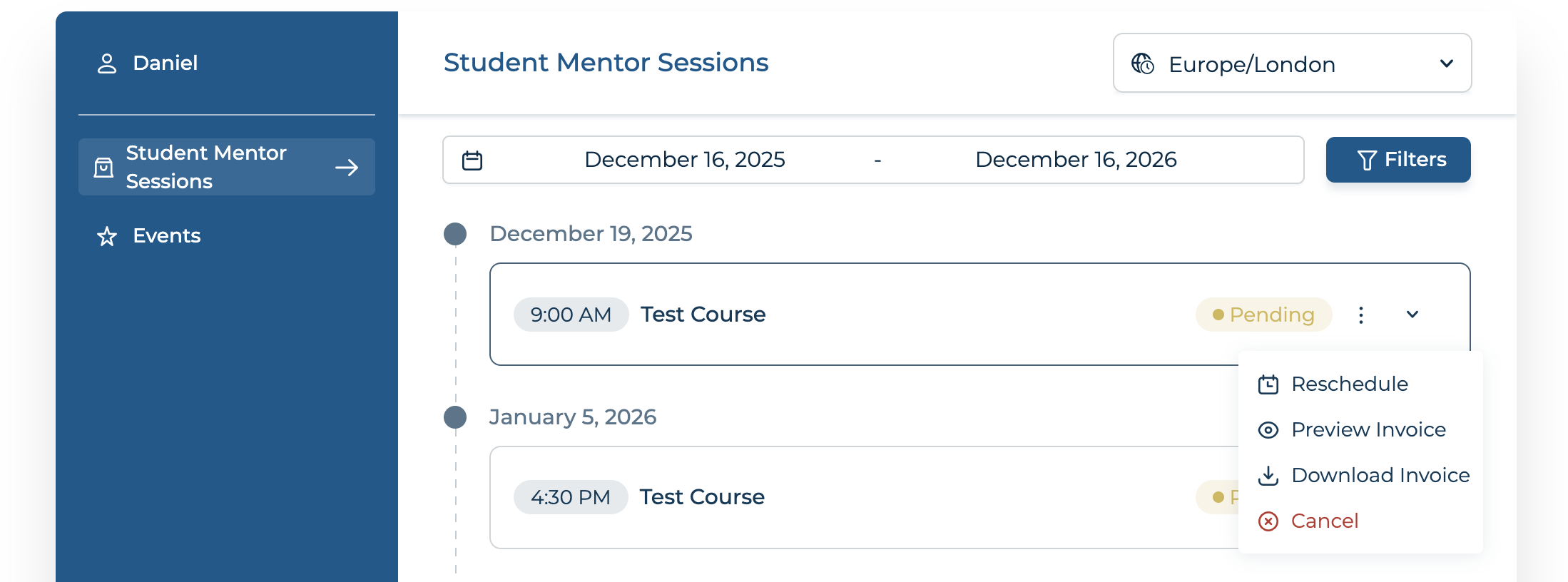
You can cancel a booking directly from My Booking, provided the cancellation is made at least 48 hours before your scheduled appointment.
To be eligible for a refund, you must also email us at hello@alreadydoingit.co.uk to confirm the cancellation. Cancellations made within 48 hours of the session are not eligible for a refund. Please refer to our Refunds & Cancellations Policy.
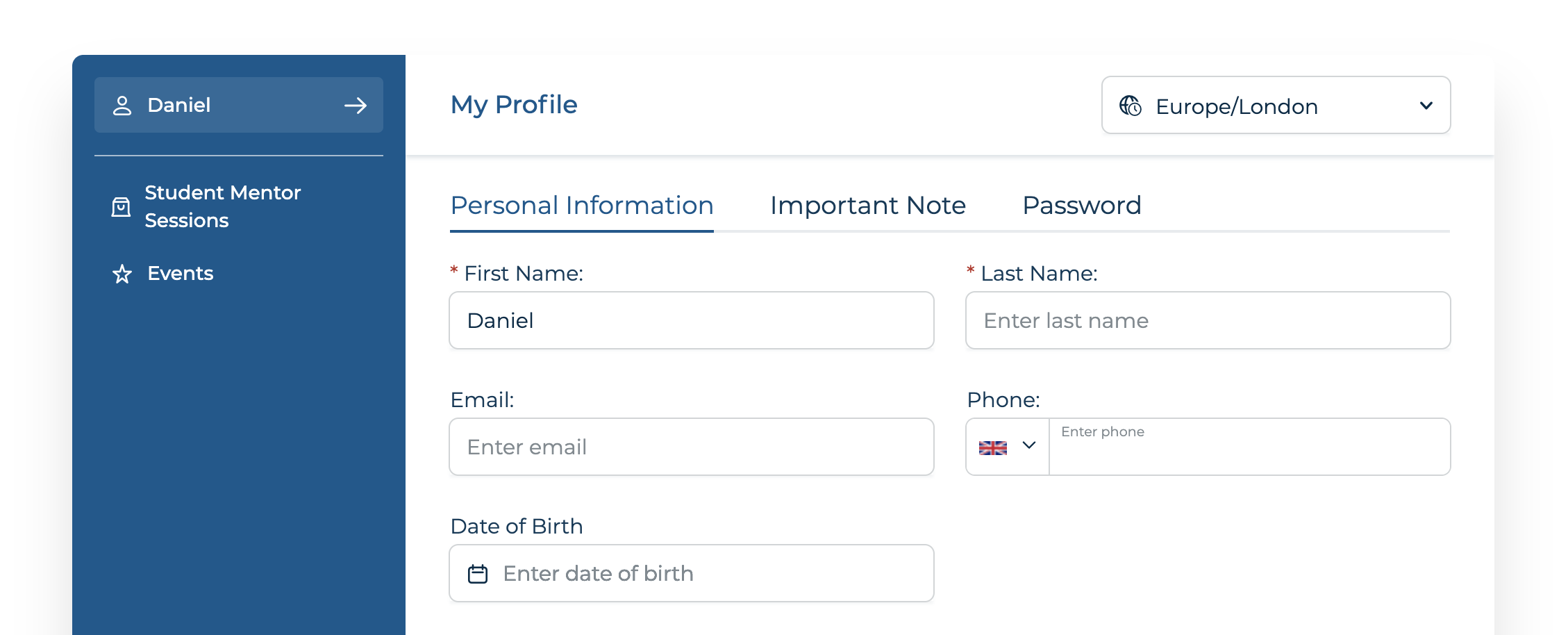
You can update your personal information, including:
- Name
- Email address
- Phone number
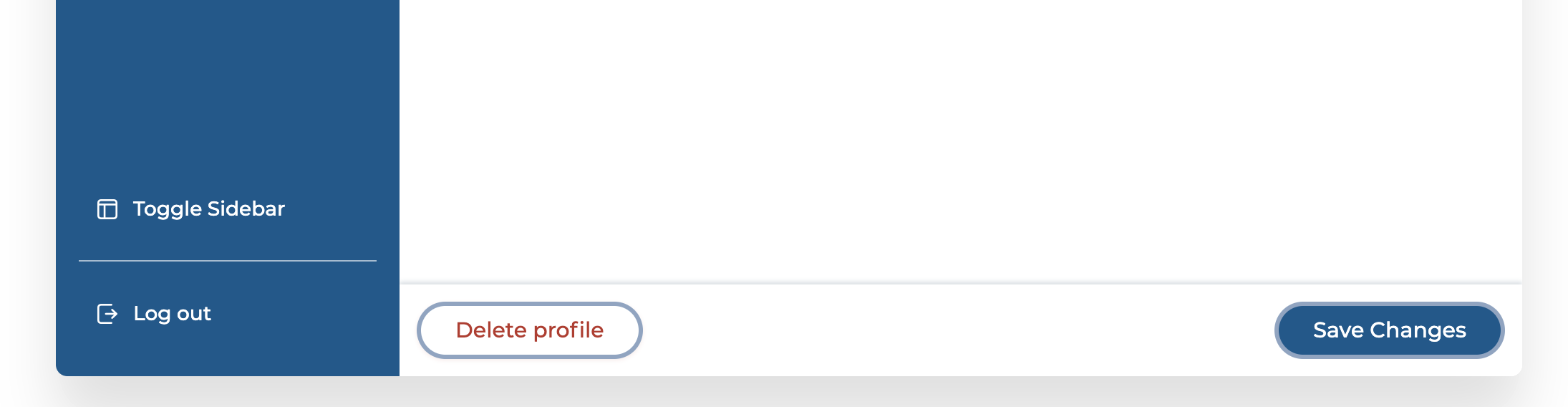
You can delete your profile at any time using the delete profile button in the bottom left hand corner of My Booking in your profile tab.
This will deactivate your account and remove your personal data in line with our Privacy Policy. In some cases, limited information may be retained where required by law.
When it's time for your session, click the Google Meet link provided in your confirmation email or shown in My Booking.
Once the Google Meet page opens:
- Click "Join now" / "Ask to Join"
- Ensure your camera and microphone are switched on
- You may see a message saying "Asking to join" — this is normal
- Your Uni Insider will admit you into the private meeting shortly
Important note for users under 18: If you are aged 16–17, a parent or guardian must be present at the start of the session in line with our safeguarding policy.
Ready to access your session?
Go to My Booking to view your upcoming session, access your Google Meet link or manage your booking.
Go to My Booking